


Turn on the HubSpot Integration in Apollo
Permissions: You need to have Admin permissions in both HubSpot and Apollo.
Before we start, a few definitions:
HubSpot Segment = Apollo List
HubSpot Company = Apollo Account
HubSpot Property = Apollo Field
In Apollo, go to Settings and select Integrations.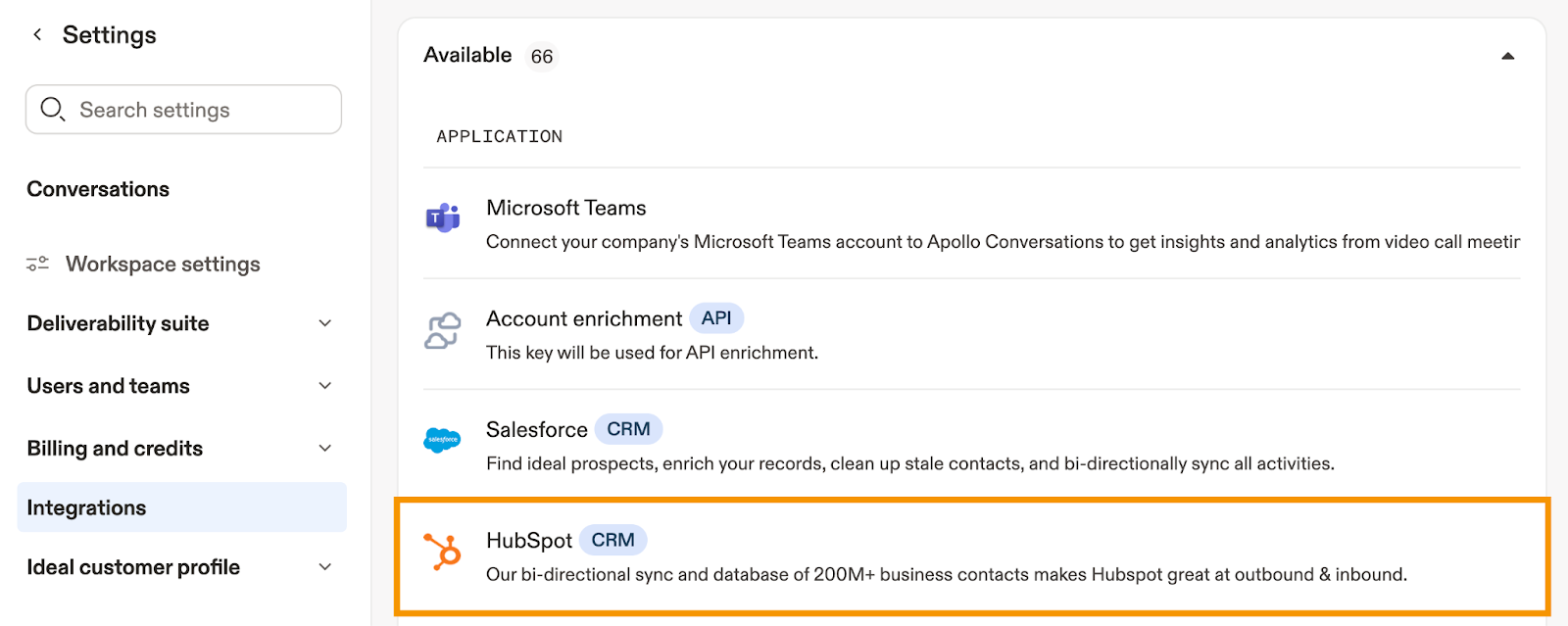
Select HubSpot and then sign in to your account.
Pro Tip: After you enable the HubSpot integration, there's a 6-hour window of time to configure push / pull settings and map fields. So go grab a coffee and come back later.
CONTACTS
Select Contacts. Click Push Contacts to push new or updated Contacts to HubSpot.
After enabling, click Push all Apollo contacts to HubSpot to push all your existing contacts.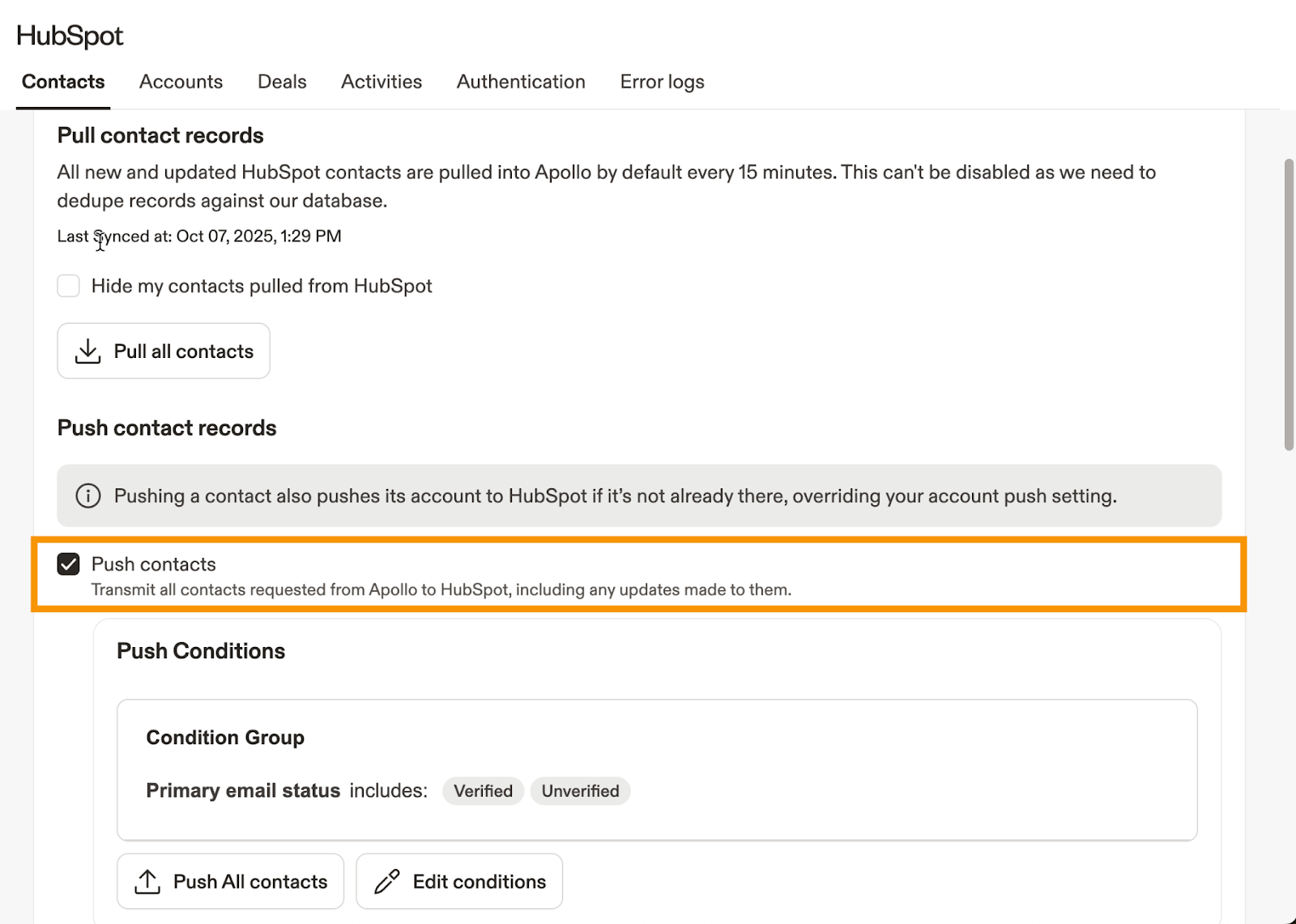
Pro Tip: When you push a new or updated contact, Apollo also pushes its account, if it isn't already in HubSpot.
Pro Tip: HubSpot push settings only affect New contacts saved in Apollo. Apollo pushes any updates to existing contacts automatically, regardless of push settings.
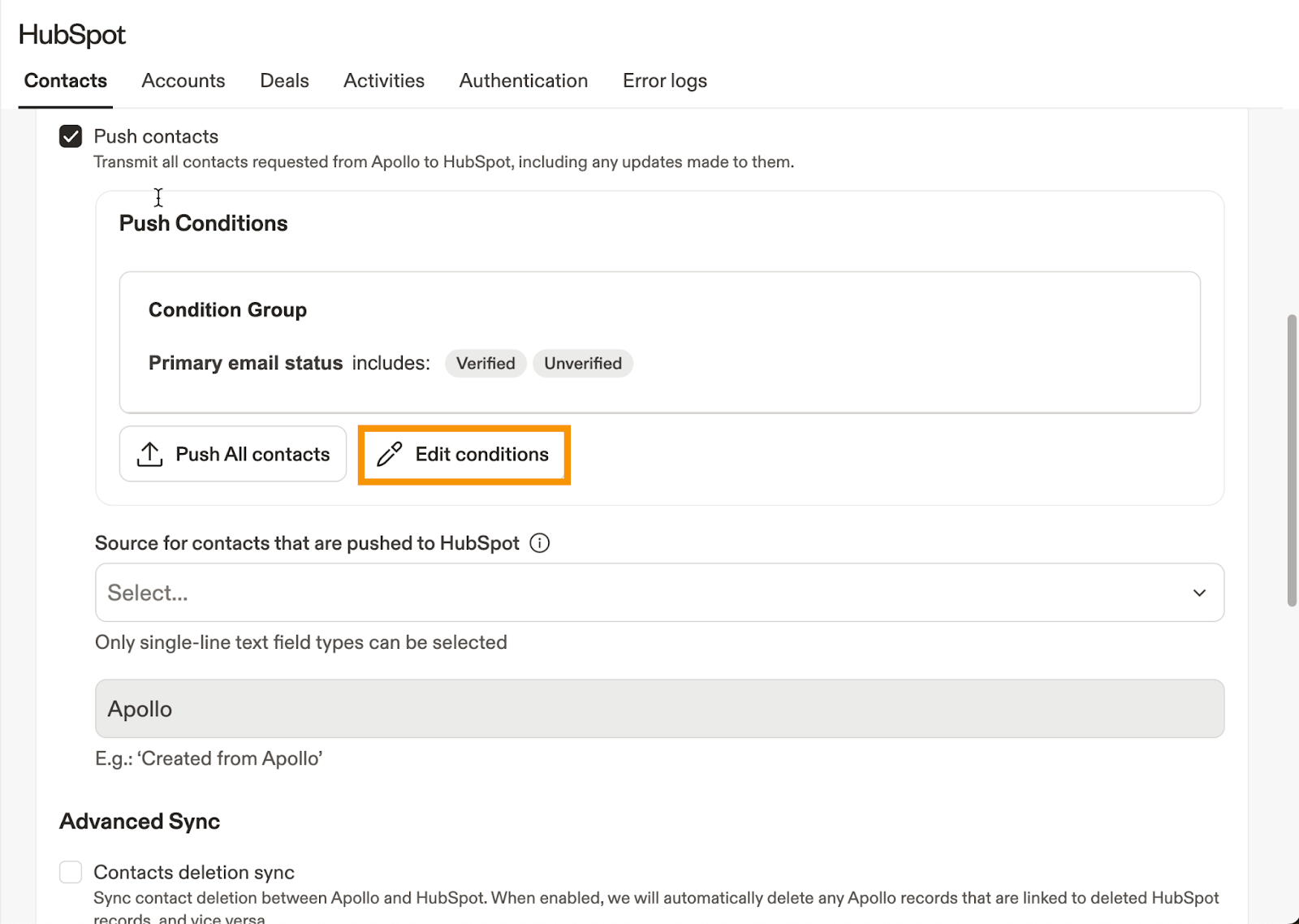
Click Edit Conditions to choose how new contacts are pushed. You can automatically push all new contacts or push them based on specific filters you select.
Create a HubSpot custom single line text Contact property named Apollo Contact Source. (While you're in HubSpot, create another custom single line text property for Companies for Apollo Company Source as well.)
Back in Apollo, set a source for contacts synced from Apollo to HubSpot. The default source is "Apollo."
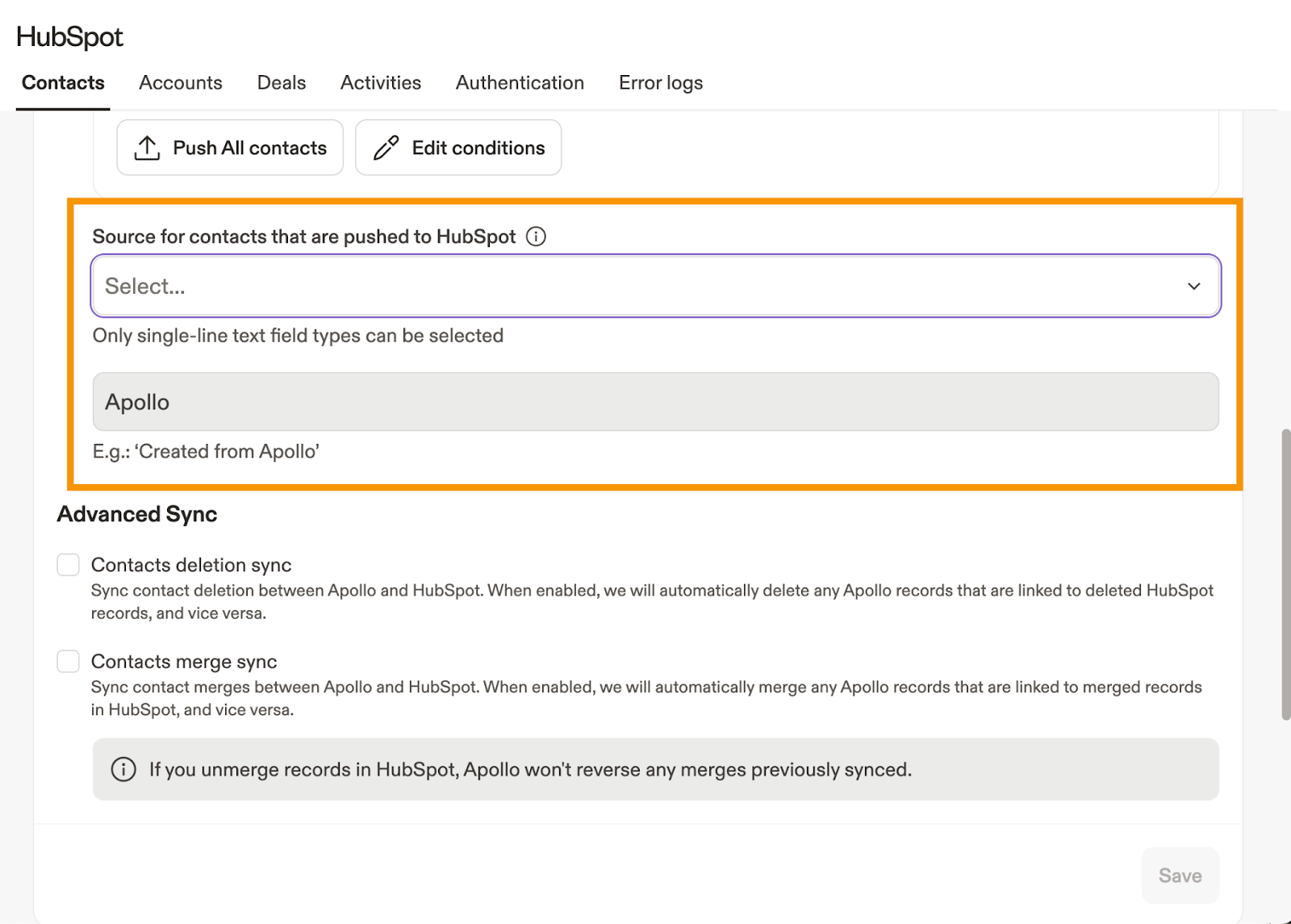
Click Save.
Duplicate records: If you have synced duplicate records in HubSpot or Apollo, there are two sync settings to remove them:
1. Contact deletion sync: Check to delete duplicate records in either Apollo or HubSpot. When enabled, Apollo auto deletes Apollo records linked to deleted HubSpot records, and vice versa.
2. Contact merge sync: Check to merge duplicate records in HubSpot. When enabled, Apollo automatically merges any Apollo records that are linked to merged records in HubSpot.
Click Save.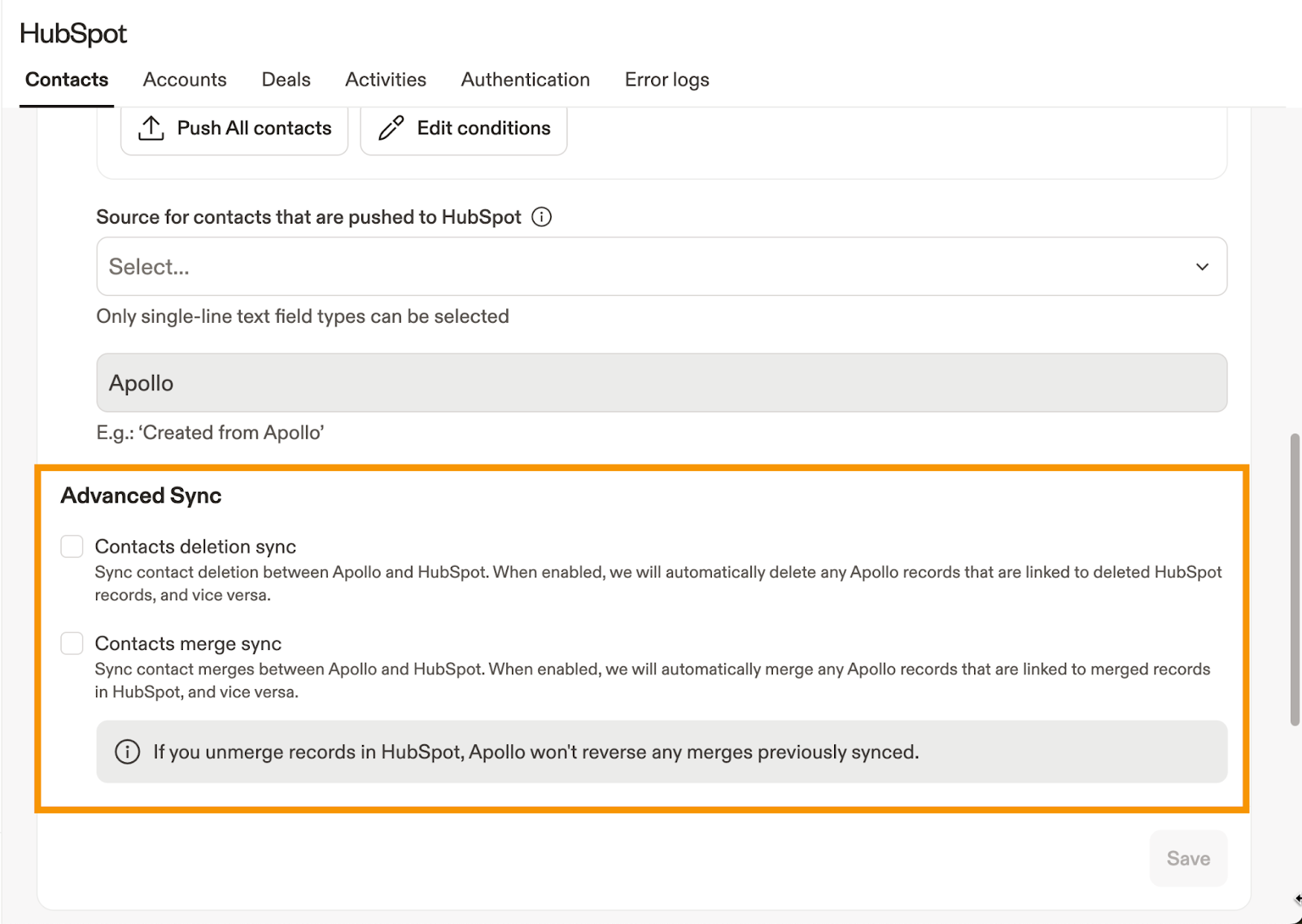
ACCOUNTS / COMPANIES
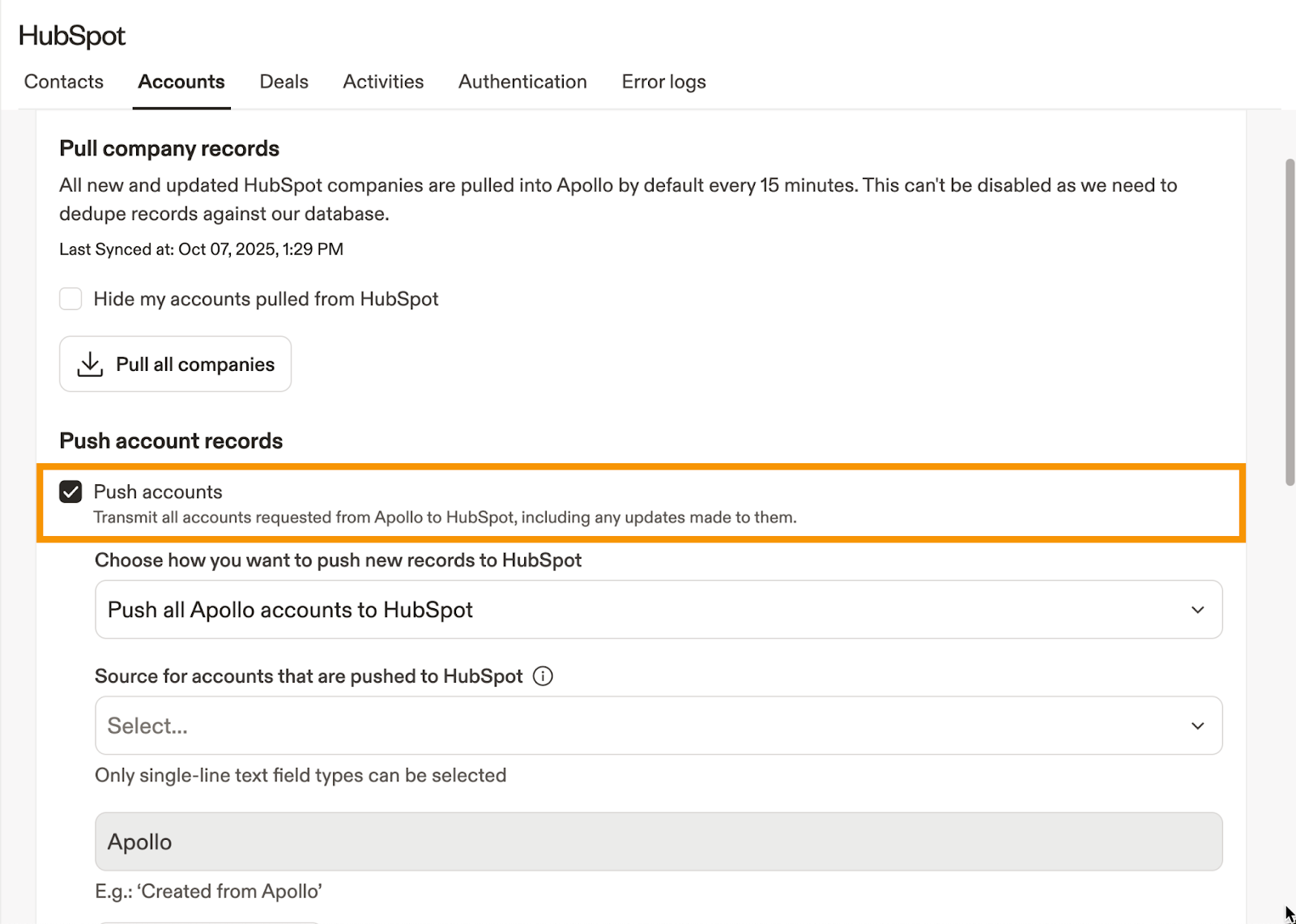
Select Accounts. By default, Apollo auto pushes New accounts to HubSpot. Uncheck Push Accounts to change this setting.
If you haven't created a Company single line text property for Apollo Company Source, do that now. Back in Apollo, select the property. The default value is "Apollo."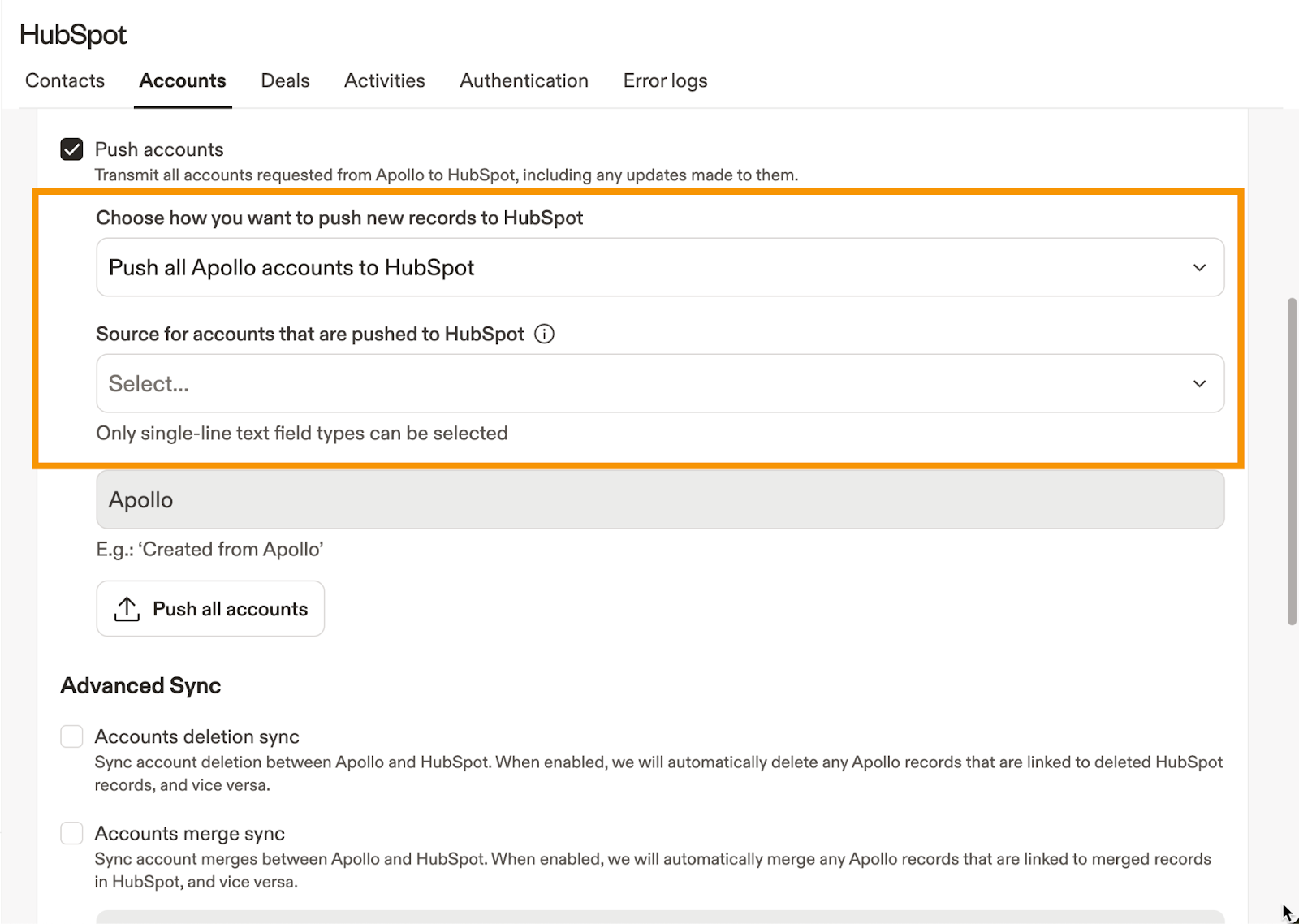
Click Save.
DEALS
Select Deals. Check Sync HubSpot deals with Apollo to actively sync pipeline and deal information bidirectionally.
Click Save.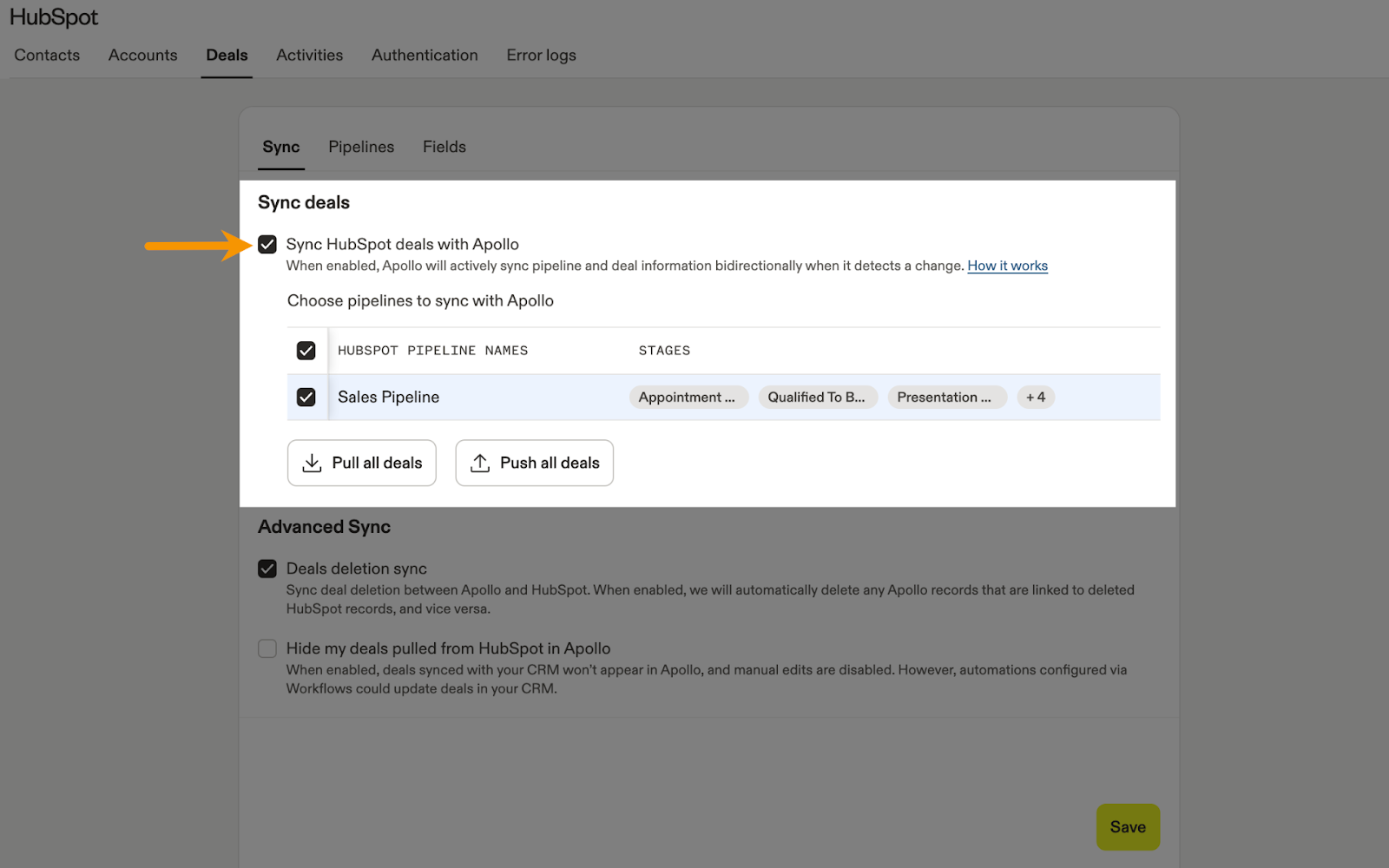
Pro Tip: When enabled, Apollo pulls all HubSpot deal information and uses HubSpot as the source of truth for any previously synced deals.
ACTIVITIES
The following Activities can be synced from Apollo to HubSpot: Emails, Tasks, Notes, Meeting Summaries, Phone Calls.
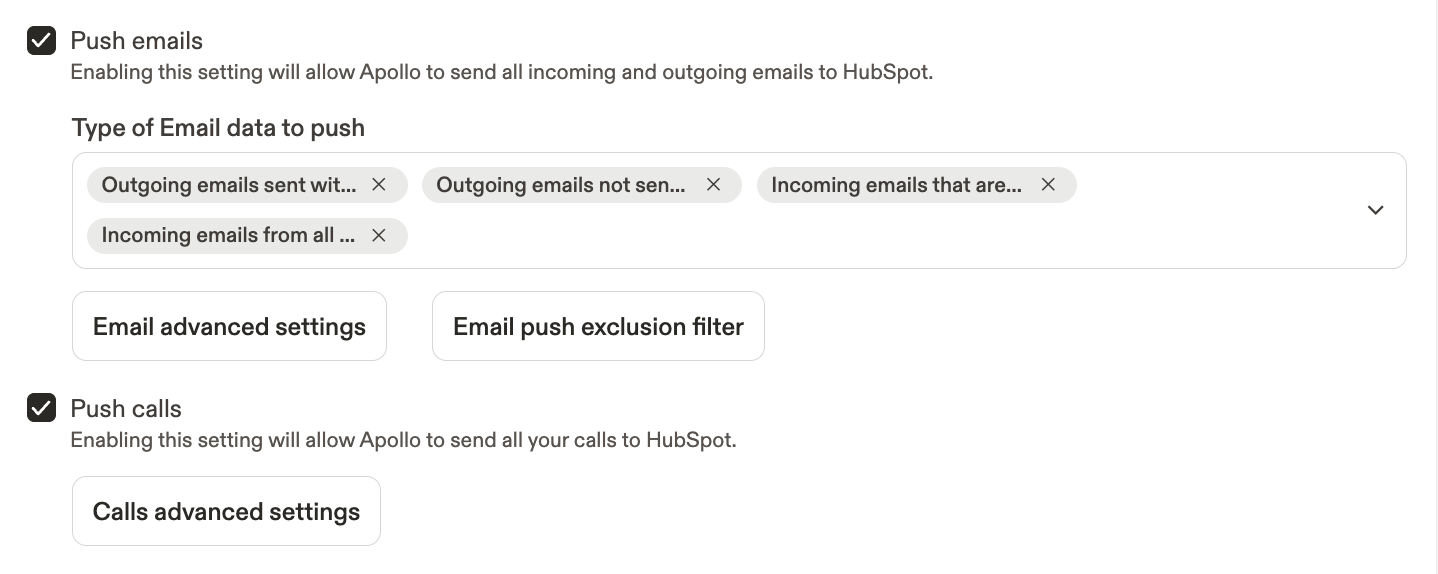
Select the Activities tab. Check Push Emails and select the types of emails you want to push.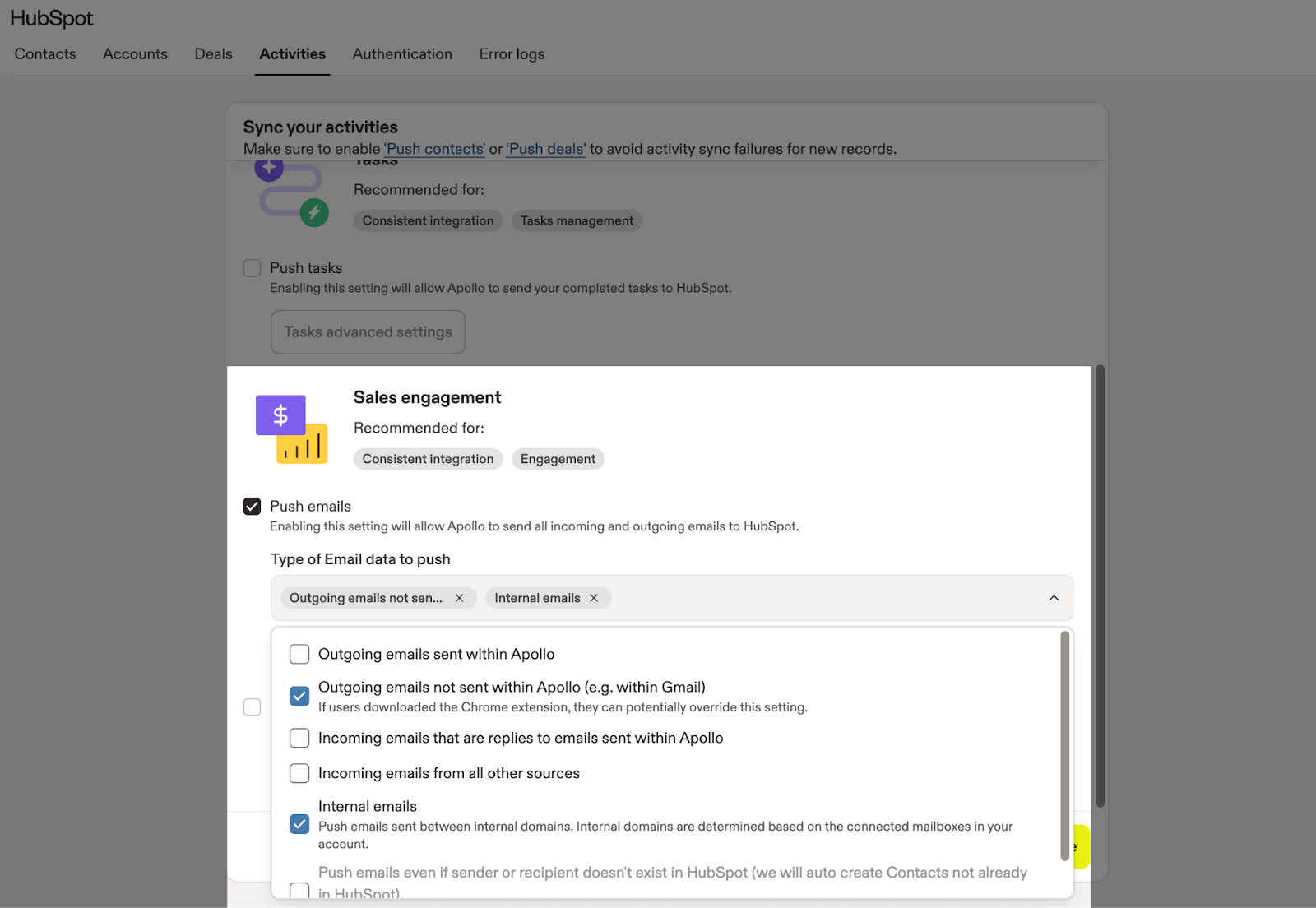
Pro Tip: Click Email Push Exclusion Filter if you want to exclude certain emails, domains or subject line keywords from syncing with HubSpot.
Check Push Tasks to push tasks from Apollo to HubSpot.
Check Push Notes to push notes from Apollo to HubSpot.
Check Push Meeting Summaries to push summaries as an activity/note to an associated deal.
Check Push Calls to push phones calls made in Apollo to HubSpot.
Click Save.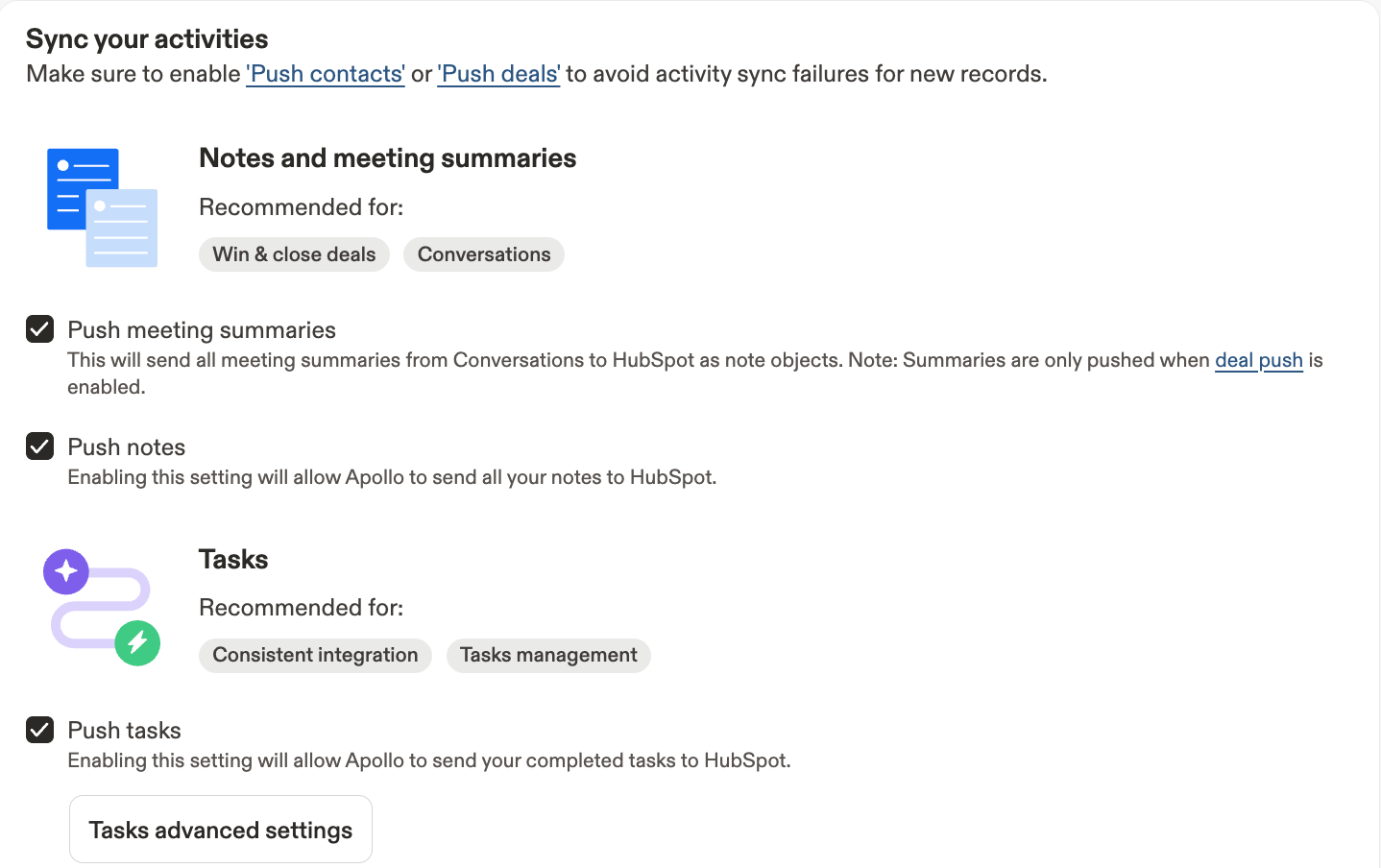
Configure HubSpot Data Mappings
Go to Settings -> Integrations -> HubSpot
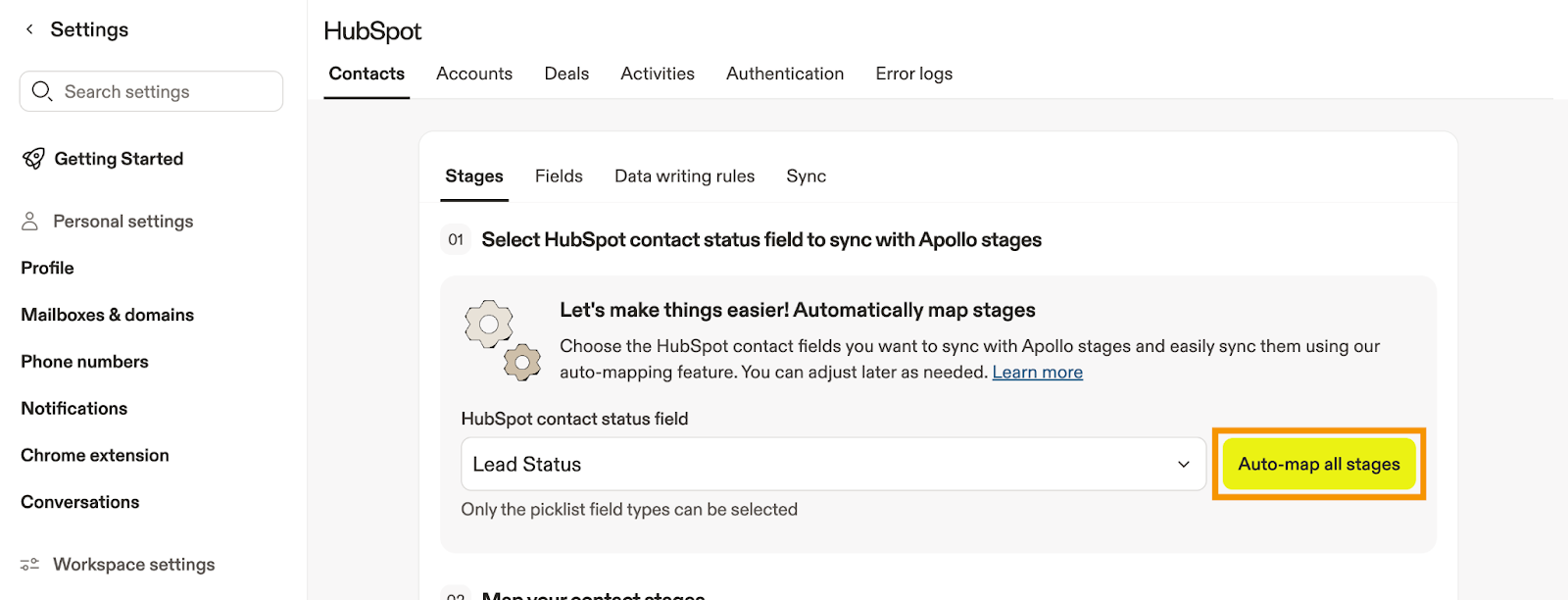
Select Contacts, go to Stages, click Auto-Map All Stages to auto map the stages.
Select Accounts, go to Stages, click Auto-Map All Stages to auto map the stages.
Click Save.
1. Define your target markets in HubSpot
Start by telling HubSpot what “right fit” actually means for your business by creating target markets using firmographic and technographic criteria. These markets act as guardrails, ensuring buyer intent signals are tied to companies you actually want to sell to. HubSpot Knowledge Base article »
In HubSpot, go to Buyer Intent -> Configuration.
Select Manage Markets.
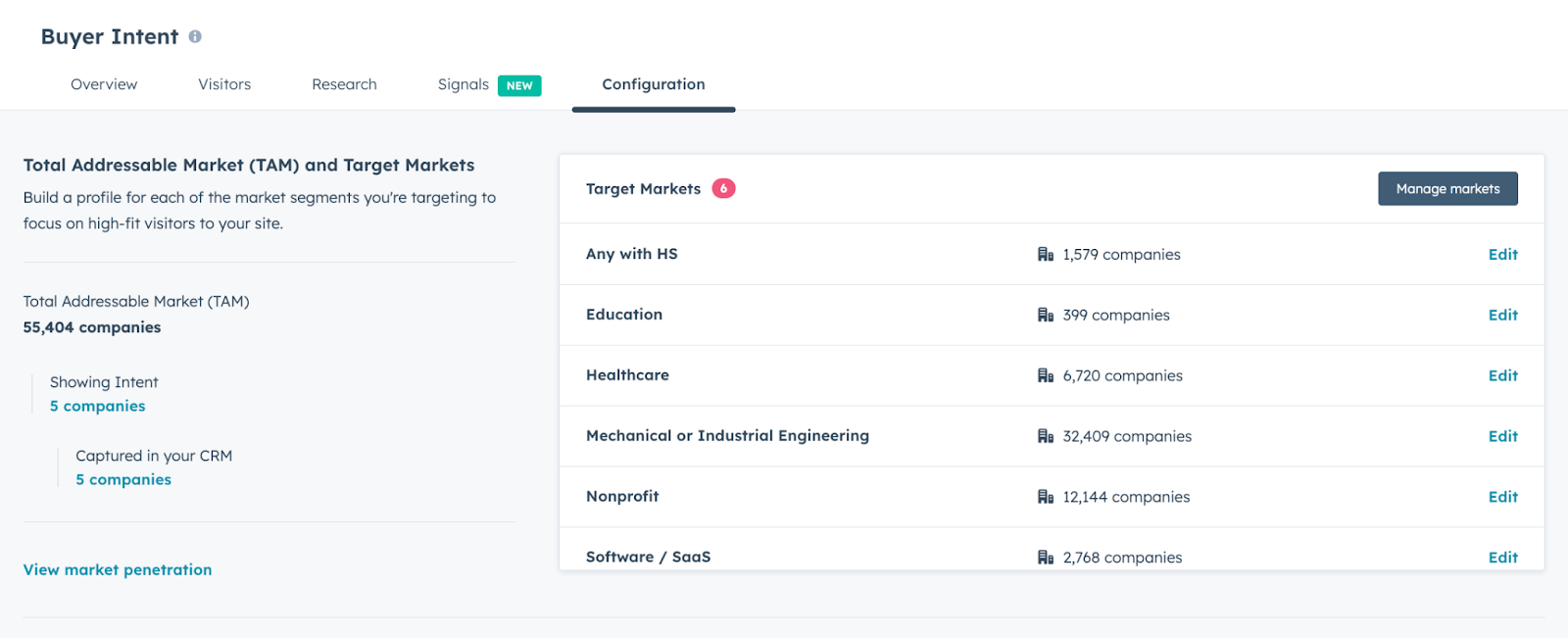
Under Settings, click Create New Market.
Choose a Market Name.
Add information in the following categories to narrow down your target market: Industries, Company Key Words, Employee Range, Company Country, Company State / Province / Region (full name), Company City, Web Technologies, Revenue.
Click Create Market.
2. Build Buyer Intent search views and automate enrollment
Next, translate intent into action by creating views and automate it to add new companies. From this point on, HubSpot continuously monitors and captures in-market accounts without manual review. HubSpot Knowledge Base article »
Go to Buyer Intent -> Research tab.
Add information to the following filters to narrow down your target companies:
- Research Intent (select your Research topics AND Filter by research level)
- Visitor Intent (toggle Showing visitor intent)
- Target Markets (toggle In my target markets)
- CRM (select HubSpot CRM: All Companies, you can also filter by Segment, Lifecycle Stage, Deal Stage, Owner)
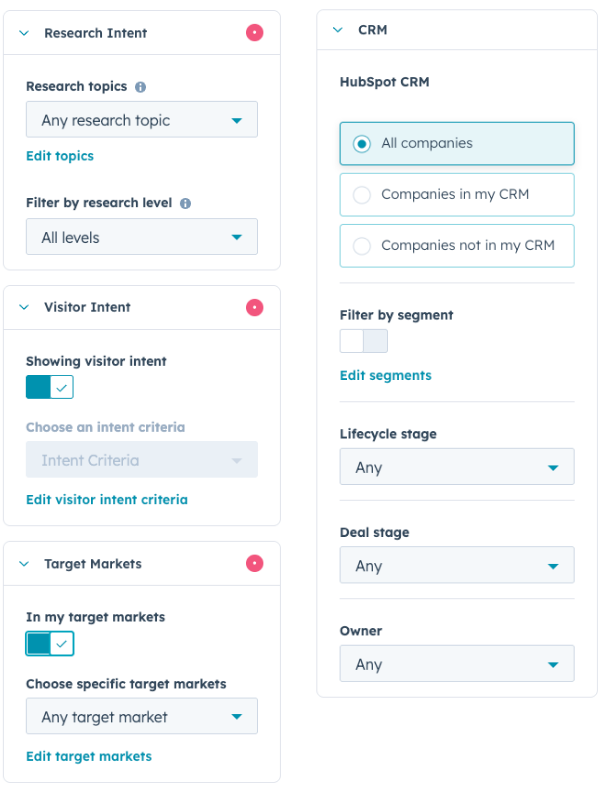
Click Save View and Automate.
Fill in Name This View and enable Add new Companies.
Toggle Static Segment and Select a Segment to save companies to.
Click Save Automation.
4. Mirror those properties in Apollo and sync them
Apollo needs to recognize the same signal. Create matching Buyer Intent Prospecting Agent fields for contacts and accounts in Apollo, then sync them with the corresponding HubSpot properties. This ensures both platforms are speaking the same language and responding to the same triggers.
Go to Settings -> Objects, Fields, Settings -> Contact Fields & Stages -> Fields.
Click Create Field.
Create custom Contact property “Buyer Intent Prospecting Agent” in Apollo.
Sync HubSpot Contact property Buyer Intent Prospecting Agent with Apollo Contact property Buyer Intent Prospecting Agent.
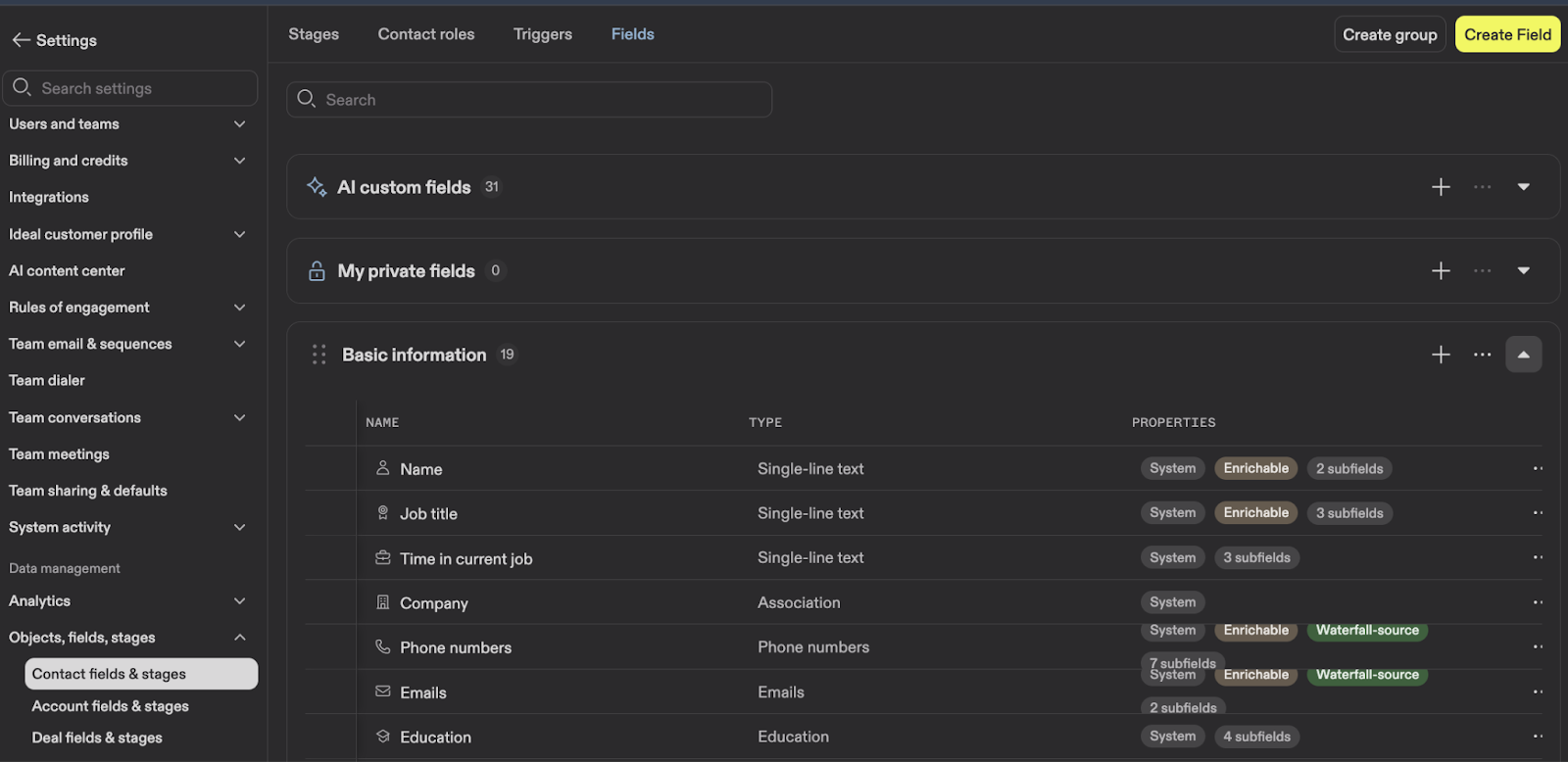
Go to Settings -> Objects, Fields, Settings -> Account Fields & Stages -> Fields.
Click Create Field.
Create custom Company property “Buyer Intent Prospecting Agent” in Apollo.
Sync HubSpot Company property Buyer Intent Prospecting Agent with Apollo Company property Buyer Intent Prospecting Agent.
5. Create segments/lists in both platforms
To keep everything organized and automated, create dedicated segments and lists for Buyer Intent Prospecting Agent activity. These lists act as the connective tissue between intent, enrichment, and outreach.
In HubSpot:
-
Create static Company segment “Buyer Intent Prospecting Agent” (this will populate via the Buyer Intent settings)
-
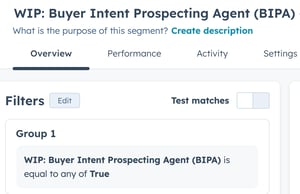
Create active Contact segment “Buyer Intent Prospecting Agent” with the criteria Buyer Intent Prospecting Agent is equal to any of "True" (this will populate via the integration with Apollo)
In Apollo:
-
Create Company list “Buyer Intent Prospecting Agent.”
-
Create Contact list “Buyer Intent Prospecting Agent.”
▶︎ For ease, we'll refer to the Buyer Intent Prospecting Agent as BIPA.
6. Automate ownership, enrichment, and contact sourcing
This is where the system starts doing the work for you. At this point, in-market accounts are enriched, scoped to ICP, and prepped for outreach automatically.
In HubSpot, create a workflow that:
- Enrollment is BIPA company list you created
-
Sets the Buyer Intent Prospecting Agent company property to “True”
-
Assigns company ownership
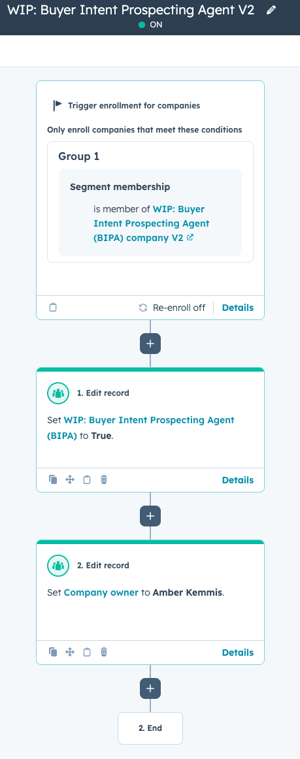
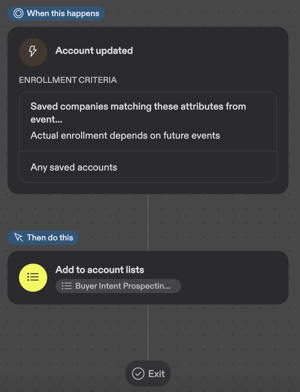
In Apollo, create these workflows:
-
One workflow to:
-
Add BIPA companies to the BIPA company list AND
-
Assign account ownership
-
-
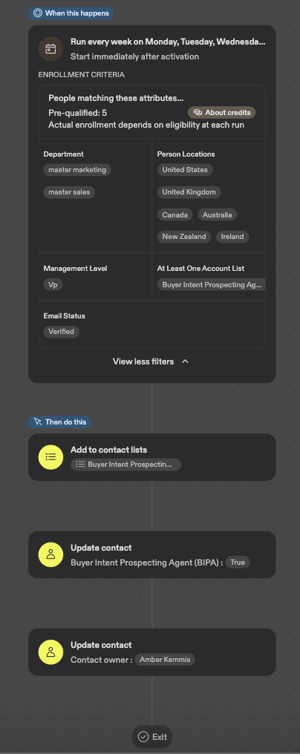
Second workflow to:
-
Pull contacts from companies on Apollo BIPA company list
-
Add to Apollo BIPA contact list
-
Assign contact ownership AND
-
Update Apollo BIPA contact property to "True"
-
7. Enroll contacts into the Prospecting Agent
Finally, activate HubSpot’s Prospecting Agent to drive outreach. Set up an automated enrollment rule so that when a contact is added to the Buyer Intent Prospecting Agent contact list, they are enrolled in the Prospecting Agent.
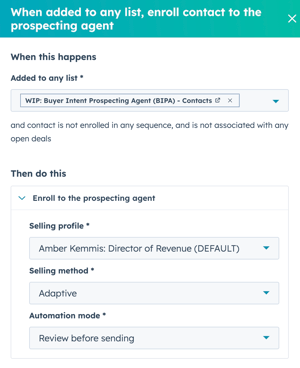
In HubSpot, go to Prospecting Agent -> Agent Set Up -> Automated Enrollments.
Select When a contact is added to any list, enroll contact in the prospecting agent -> Edit.
When a contact is added to any list: select BIPA Contact list.
Auto enroll the contact in the Prospecting Agent. Select Selling Profile (person sending the email), Selling Method (Adaptive) and Automation Mode (Review Before Sending).
Click Save; toggle ruleset ON.
Data Enrichment Opt Out
Individuals can tell HubSpot they want to opt out if they don't want their details used for enrichment. (More info.)
To auto delete enriched data when these requests come in, enable the toggle here: Settings -> Privacy and Consent -> Privacy tools -> Process data enrichment delete requests automatically. Toggle on Delete enriched data when request is received.
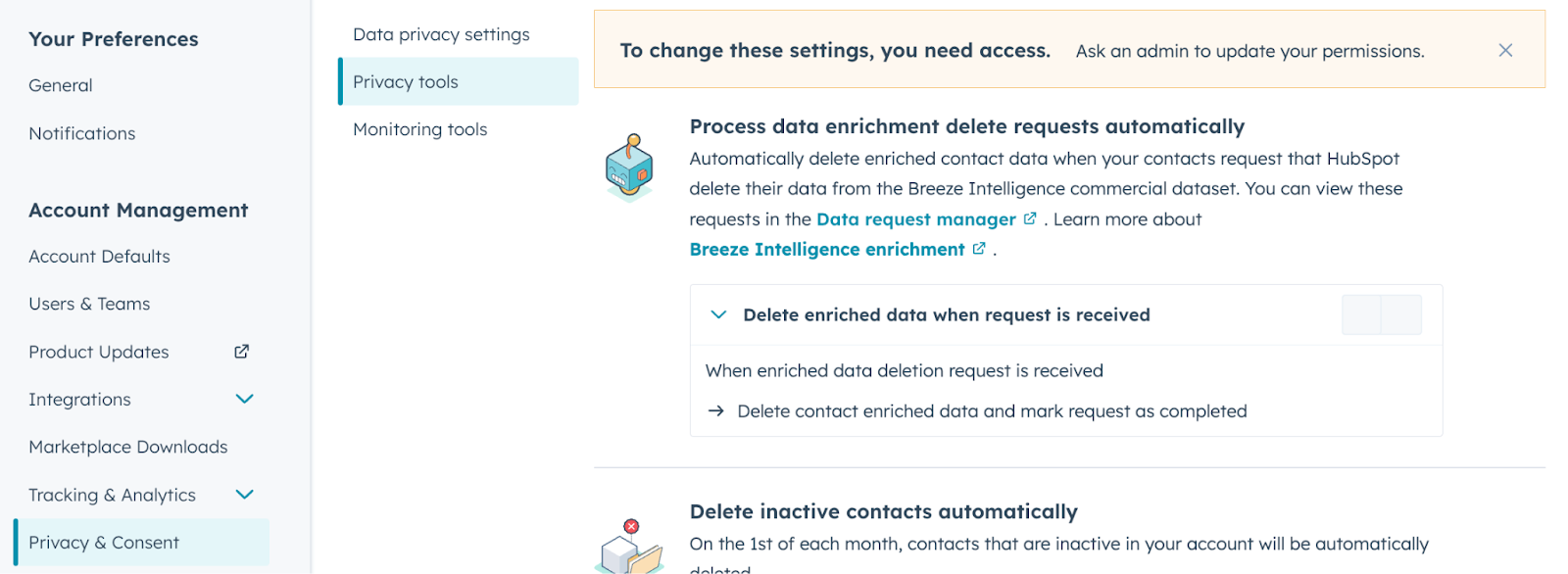
Otherwise, a SuperAdmin can perform data deletion by hand every time a request comes in.
Please note: In HubSpot, when someone opts out of data enrichment, it affects only future data processing, not communication or existing data.
Opting out of enrichment does NOT:
- Unsubscribe the contact from marketing emails
- Change subscription status
- Delete existing data
- Prevent manual updates by your team
- Remove the contact from workflows unless you explicitly exclude them
- Affect analytics, reporting, or attribution
DNC Call List
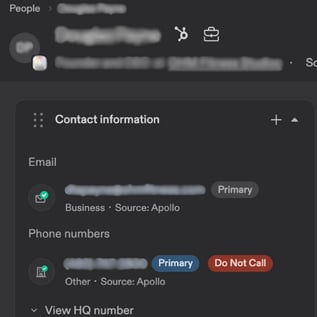 Apollo has a built-in flag for phone numbers that are on official registries for "Do Not Call" and displays a tag next to the person's phone number.
As of January 2026, HubSpot does not have access to this tag and as such, it is not possible to sync Do Not Call phone number flags from Apollo to HubSpot.
So while HubSpot could be providing you with a legitimate phone number (from Apollo), they are not checked against DNC registries.
For this reason, we recommend making calls out of Apollo instead of HubSpot for any synced contacts.